
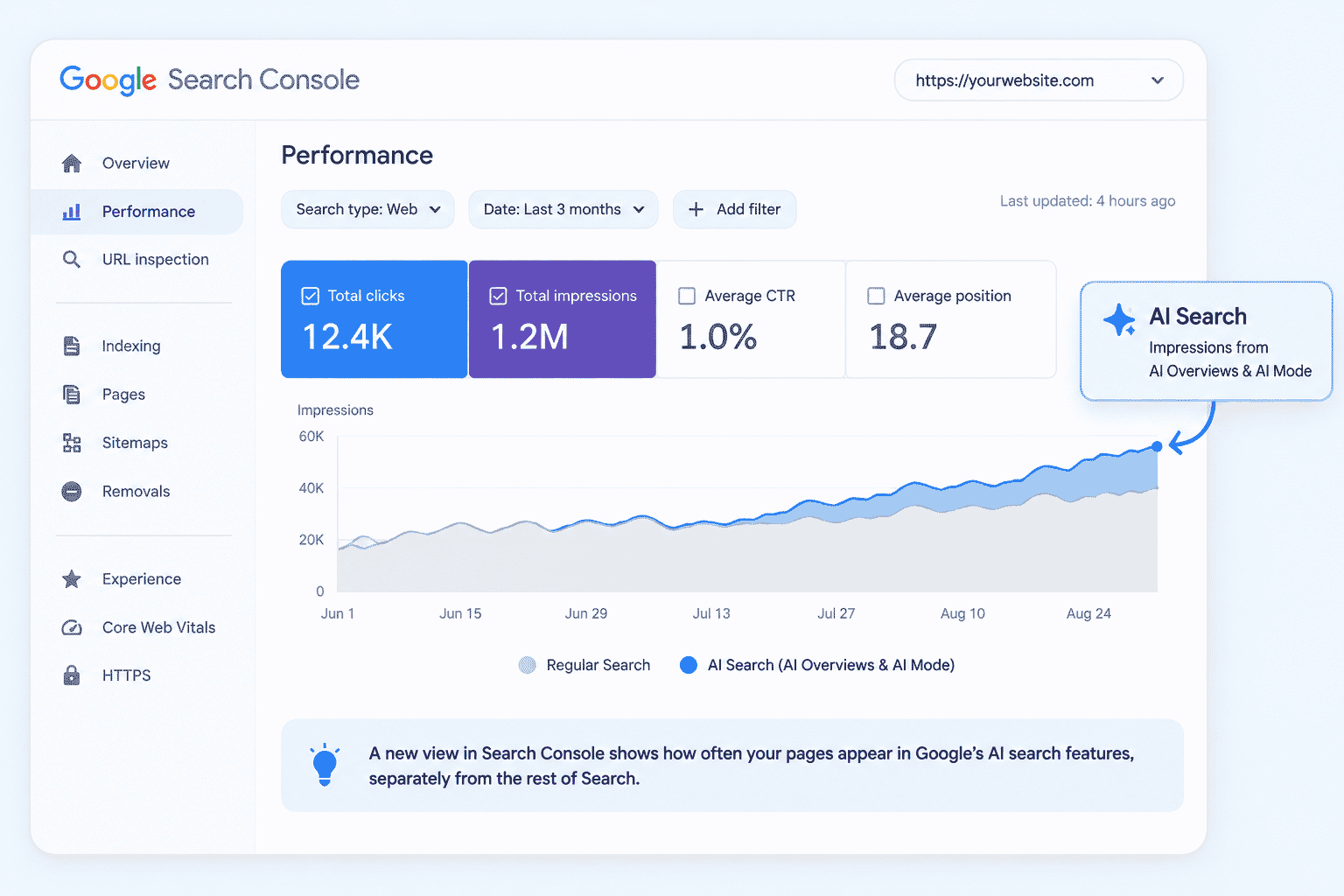

You open ChatGPT and type: “is AI search sending me traffic?” Back comes a confident paragraph about the shift to generative search, and advice to monitor your analytics closely. No mention of your site. No mention of which report. So you close the tab, open Search Console, and stare at the same impressions chart you were staring at last week.
The problem is that the question never told it which site, which tool, or what data you actually had in front of you.
As of September 2026, you can see AI search impressions in Google Search Console, but you cannot see clicks from Google’s AI Overviews or AI Mode there. The useful part is knowing exactly what those impressions mean, then using GA4 to see the AI traffic Google does identify separately.
What changed in Search Console
Google Search Console now has a dedicated Generative AI performance report for Google Search, covering AI Overviews and AI Mode.
Google launched the Search generative AI performance reports on 3 June 2026, initially to a subset of websites. Google says the insights were rolled out to all websites worldwide as of 31 August 2026. The new view does not represent extra traffic that suddenly appeared in your account. Google says the generative AI data continues to be included in the overall Performance report, while the new report gives it a separate view.
That distinction matters. If your new report shows 500 AI impressions, you should not say, “We got 500 new visits from AI search.” The number tells you that links to your site were shown in Google’s generative AI features. It does not tell you that 500 people visited your site.
Google also says the Search report currently covers AI Overviews and AI Mode, while experiments in Search Labs are not included. Google has said the list of supported generative AI features may change as Search develops. You can read Google’s announcement of the Search generative AI performance reports for the launch details.
Where to find the report
The fastest way to check your AI search visibility is to open the Performance area for your Search Console property and open the Generative AI performance report for Search.
At the time of writing, Google’s help documentation calls the report the “Generative AI performance report (Search)”. The exact label and menu placement should be checked in a live Search Console account before publishing because Google can change the interface.
If you cannot see the report, do not immediately assume that your site has no AI visibility. Google’s current help documentation lists several possible reasons. Your property may not have access yet, your site may not have received enough impressions in Google’s generative AI features, or your site may have been excluded from Search generative AI features.
The last case is especially relevant if someone on your team has changed the site’s Search generative AI settings. Google provides a separate Search generative AI control in Search Console where site inclusion can be managed.
What the report actually shows you
The Generative AI performance report shows AI impressions for your site, grouped by Pages, Countries, Devices, and Dates.
Pages
The Pages view tells you which URLs from your site appeared in Google’s generative AI features.
This is the view to start with if your real question is, “Which content is Google using in AI answers?” You can sort the pages by impressions and see which URLs have the most visibility in AI Overviews and AI Mode.
Keep in mind that Search Console assigns most performance data to the canonical URL rather than a duplicate URL. The report groups Pages by the final URL linked by the generative AI feature after redirects.
Countries
The Countries view tells you where the searches that generated those AI impressions came from.
This can help if your site targets several markets. A page that looks strong at the global level may have most of its AI impressions coming from one country. Check this before making a broad statement about international AI visibility.
Devices
The Devices view shows whether the searches happened on desktop, tablet, or mobile.
That gives you another way to read the same impression data. For example, if a group of pages gets most of its AI impressions on mobile, that is useful context when you review those pages manually.
Dates
The Dates view shows how your AI impressions change over time, using daily, weekly, or monthly grouping.
Search Console uses Pacific Time for these dates. The newest data can also be preliminary, which Google marks with a dotted line because the data is still being collected and may change over the next few hours.
The usual Search performance limitations apply here too, including the 1,000 row limit. There is also an export button, so you can take the chart and table data out of Search Console for closer analysis.
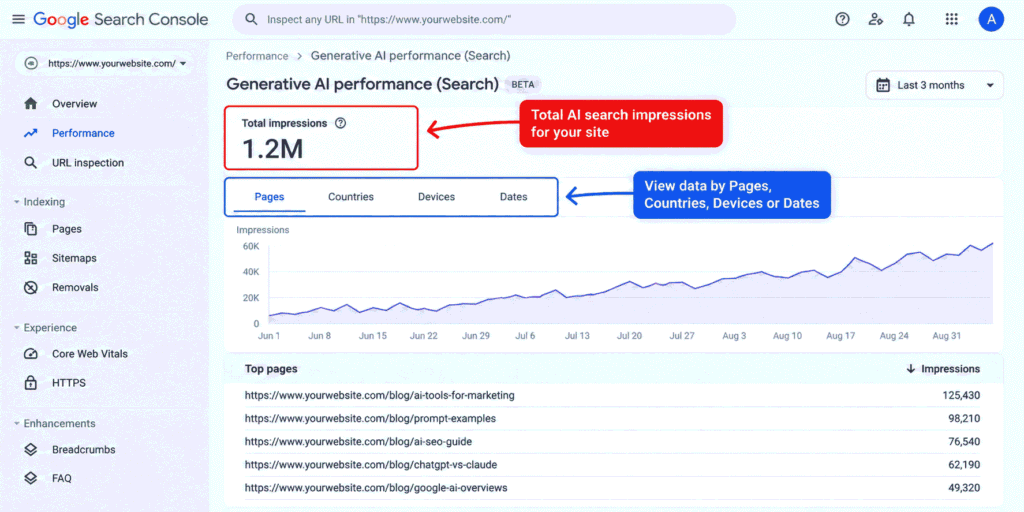
Google’s current documentation covers the report’s dimensions, date handling, preliminary data, row limits, and export options in its Generative AI performance report documentation.
How to track traffic from AI Overviews in Search Console
You cannot track AI Overview clicks in Search Console, but you can track the impressions that show your pages appeared in AI Overviews and AI Mode.
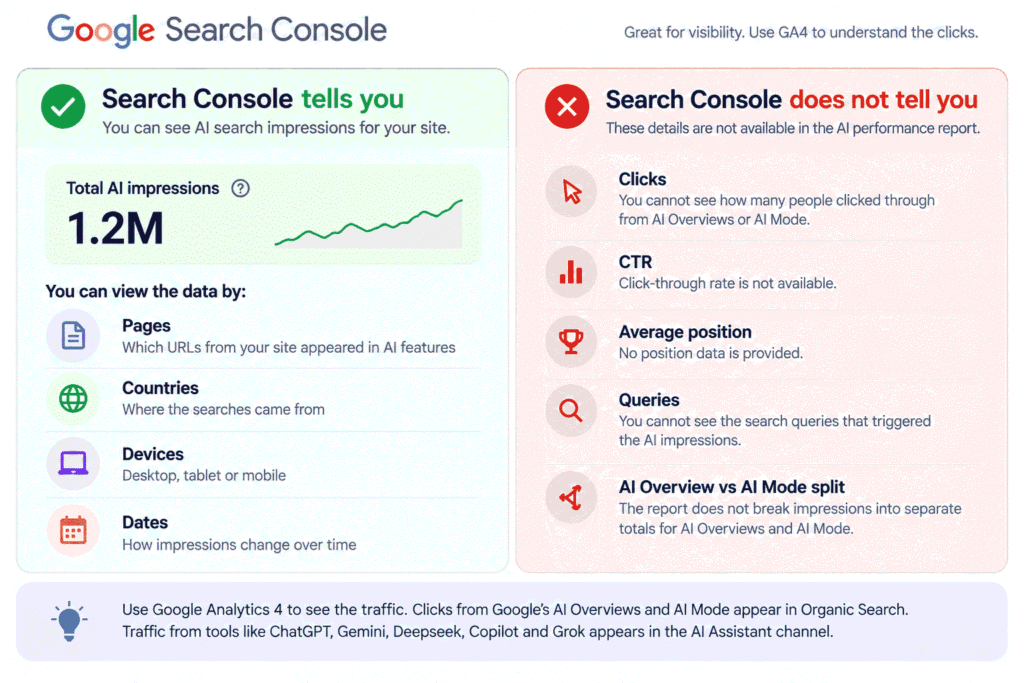
The report does not give you a click count, click-through rate, average position, or query-level view for these AI impressions. It also does not split the reported impressions into separate AI Overview and AI Mode totals.
That creates an important reporting boundary. The report answers, “Am I appearing in Google’s AI search features?” It does not answer, “How many people did those features send to my site?”
Search Labs experiments are excluded too. So you should not use this report as a complete record of every experimental AI search experience in which your content may have appeared.
There is a practical reason to be strict about this. If your monthly report says “AI search generated 8,400 visits” and the only source you used was the Search Console Generative AI report, the number is wrong. The report contains impressions, not visits.
Where the clicks actually show up, and where they do not
Google Analytics places clicks from Google’s AI Overviews and AI Mode inside Organic Search rather than the separate AI Assistant channel.
GA4’s AI Assistant channel covers arrivals from sources such as ChatGPT, Gemini, Deepseek, Copilot, and Grok. Google’s documentation explicitly says that this channel excludes Google AI Overviews and AI Mode.
Google’s Organic Search channel, on the other hand, includes non-ad links in organic search results, including links from Google’s AI Overviews and AI Mode.
So you have 2 different pieces of information across the 2 tools:
| Tool | What you can see |
|---|---|
| Search Console | Impressions from AI Overviews and AI Mode, with Pages, Countries, Devices, and Dates |
| GA4 | AI Assistant traffic from sources such as ChatGPT, Gemini, Deepseek, Copilot, and Grok |
| GA4 Organic Search | Traffic from organic search, including Google AI Overviews and AI Mode |
As of September 2026, neither tool gives you a clean, first-party number for clicks specifically from Google’s AI Overviews and AI Mode. You can see that your pages appeared in those features in Search Console, and you can see Google’s AI traffic mixed into Organic Search in GA4. You should not turn those 2 numbers into a precise AI Overview traffic figure.
Turn the export into an answer, with 1 prompt
The easiest way to get more value from the report is to export the Pages view and give the file to an AI tool with clear instructions about what the data means.
First, export the Pages view from the Generative AI performance report. Keep the date range visible because you will need it when you compare the file later.
Then you can ask an AI tool to analyse the file. The prompt most people naturally write is short:
Analyse my Search Console data and tell me how my AI traffic is doing.There is a problem with this request. The AI has not been given the file, and “AI traffic” is not a metric in the export. It has no way to know which pages appeared, how many impressions they received, or what you want to learn from them.
Here is the same task with the missing context supplied:
You are an SEO analyst helping a non-technical marketer understand Google Search Console data.
I have attached an export of the Pages view of the Generative AI performance report in Google Search Console.
Date range covered by the file: [START DATE] to [END DATE]
The file contains these columns:
[LIST THE EXACT COLUMN NAMES FROM THE EXPORT]
Critical metric definition:
The Impressions column counts the times a link to the site was shown inside Google's AI Overviews or AI Mode. This file does not contain click, CTR, or position data.
About the site:
[WRITE 1 LINE ABOUT WHAT THE SITE IS ABOUT AND WHO READS IT]
Analyse the file and answer this exact question:
1. Which 10 pages get the most AI impressions?
2. What do those pages have in common in terms of format or topic?
3. Which pages would I reasonably expect to appear in this report but do not?
Output:
First, give me a short table with these columns:
Page | AI impressions | Topic or format
Then give me 3 observations about the pages with the highest impressions.
Finally, give me 1 thing I should check manually on the site or in Search Console.
Do not estimate clicks, traffic, conversions, or revenue from this file. If the file cannot answer something, say so plainly instead of guessing.
The second prompt works better because it gives the AI the actual data, defines the only metric it should use, explains what the site is about, and tells it what question to answer. It also puts a clear boundary around what the file cannot prove.
If you are building repeatable SEO analysis workflows with Claude, you can also refer to the Claude SEO Writing Playbook for related SEO workflows.
The 15 minute check to repeat every month
A monthly AI search check can be kept to 15 minutes if you use the same report and comparison method each time.
- Open the Generative AI performance report for your Search Console property.
- Set the date range for the month you want to review.
- Open the Pages view and export the data.
- Compare the export with the previous month’s file.
- Note which pages gained or lost AI impressions.
- Pick the biggest changes and write 1 line about what changed on those pages.
Do not turn this into a monthly exercise in guessing AI traffic. The useful question is simpler: which pages are becoming more or less visible in Google’s AI features, and what changed around those pages?
If you find yourself repeating the same analysis every month, the next step is to turn the process into a saved workflow. The Claude Skills guide can help you think through that kind of repeatable setup.
Frequently Asked Questions
How to check AI search visibility?
Use the Generative AI performance report in Google Search Console to see how often your pages appeared in Google’s AI Overviews and AI Mode.
How to track AI Overviews?
Search Console now gives you AI Overview impressions together with AI Mode impressions, but it does not separate the 2 or provide their individual click counts.
How to track AI Mode?
Use the Generative AI performance report to monitor impressions from AI Mode, while remembering that Google’s current report combines AI Mode with AI Overviews.
Is Google AI Mode the same as Gemini?
No, Google AI Mode and Gemini are different Google AI experiences. For traffic measurement, Google’s Analytics documentation treats traffic from Gemini as part of the AI Assistant channel, while AI Mode traffic is included in Organic Search.


Leave a Reply